
MacBook Screen Flickering? What Causes It, and How to Fix It
Screen flashing, flickering, or showing odd lines? It can be a quick software fix, or a display-cable / panel fault. Here's how to tell, fast.
Free diagnosis · Pickup & delivery across Dubai · 380+ reviews
Updated May 2026 · Written & reviewed by Dan, board-level Mac engineer
Quick Answer
If your MacBook screen flickers, first restart it, update macOS, and toggle off Automatic Graphics Switching / True Tone to rule out software. Then connect an external monitor: if the external screen is clean but the built-in keeps flickering, the fault is the display, the panel or the display cable, not software. MacTech Pro diagnoses flickering free and repairs the display or cable at component level in Dubai.
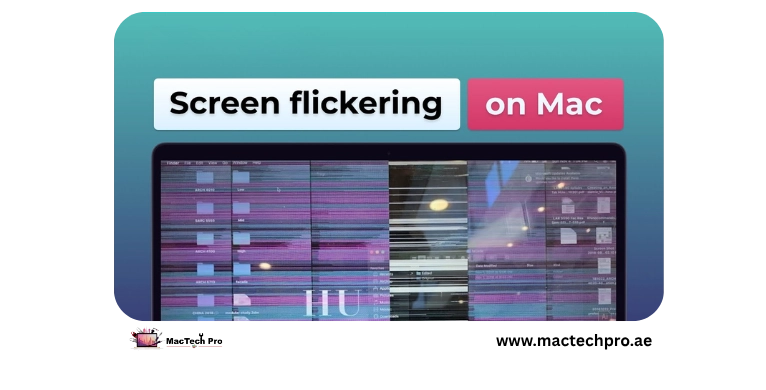
Flickering is alarming, but not always serious. Sometimes it's software, a graphics glitch, a display setting, or a bug cleared by an update or restart. Sometimes it's hardware, a strained display cable, a failing panel, or a graphics fault. The trick is a few quick tests that point you the right way before you spend anything. Applies to every MacBook Air and Pro, Intel and Apple Silicon (M1–M5).
The One Test That Tells You Most
Plug in an external monitor. If the external display is perfectly stable while your built-in screen still flickers, the problem is hardware on the display side (panel or cable), not the logic board or software. If both screens flicker, it points more to graphics/software or the GPU. This single test saves a lot of guesswork.
Free Software Fixes to Try First
- Restart properly. A full restart (not just closing the lid) clears a surprising number of graphics glitches.
- Update macOS. Flicker bugs are often fixed in updates. Check Software Update.
- Toggle graphics switching. On Intel Macs, System Settings > Battery, turn off Automatic Graphics Switching to test. On all Macs, try turning off True Tone.
- Reset NVRAM (Intel). On Intel Macs, an NVRAM reset can clear display glitches. (Apple Silicon does this automatically on restart.)
- Check in Safe Mode. Boot into Safe Mode, if the flicker stops, it's software; if it continues, it points to hardware.
When It's Hardware
If the external-monitor test and software steps point to hardware, here's what's usually behind it:
- Display cable (flex cable). On many MacBooks the cable that carries the image flexes every time you open and close the lid, and can wear out, causing flicker, lines, or cut-outs at certain hinge angles. A known issue on some models, and a repairable one.
- The panel itself. A failing LCD/Retina panel can flicker or show bands. MacTech Pro can replace just the internal panel on most models, cheaper than a full lid.
- Graphics (GPU) fault. Less common, but a board-level graphics fault can cause flicker on both internal and external screens, exactly the kind of component-level repair MacTech Pro handles.
How MacTech Pro Fixes Flickering
MacTech Pro, Dubai's most trusted MacBook service center with 380+ reviews, diagnoses exactly where the flicker comes from, cable, panel, or board, and repairs the specific fault, led by Dan, one of the best Mac technicians in Dubai. That often means a cable or panel-only repair rather than an expensive full-display swap. Free diagnosis, pickup and delivery across Dubai.
Frequently Asked Questions
Related repairs & guides
MacTech Pro — MacBook display specialists in Dubai. Flicker diagnosis, cable & panel-only repair, board-level GPU work. 380+ reviews. Led by Dan.