MacBook Stuck on the Apple Logo? Here's How to Fix It
Frozen on the Apple logo, or stuck at the progress bar? This is a startup/software issue more often than a dead Mac, and there's a clear set of steps to try.
Free diagnosis · Pickup & delivery across Dubai · 380+ reviews
Updated April 2026 · Written & reviewed by Dan, board-level Mac engineer
Quick Answer
If your MacBook is stuck on the Apple logo, first force-restart (hold the power button ~10 seconds), then try Safe Mode to bypass software issues. If that fails, boot into Recovery and run Disk Utility's First Aid to repair the drive; if needed, reinstall macOS (this keeps your files). If it still won't boot, or the drive isn't detected, it points to a storage or logic-board fault, which MacTech Pro diagnoses free in Dubai, with data recovery if required.
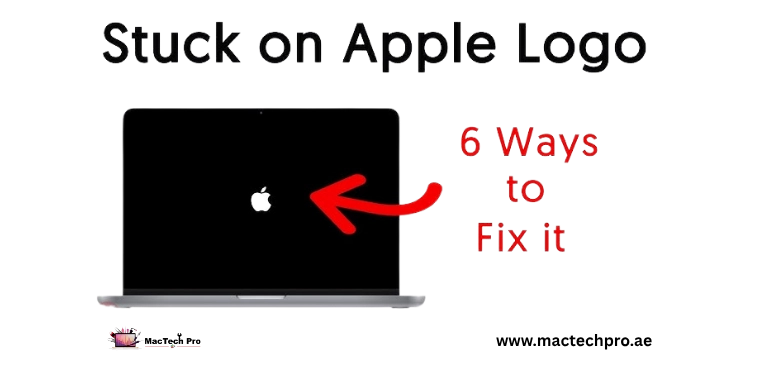
Getting stuck at the Apple logo means the Mac powers on and begins to start macOS, but something stops it finishing, a software problem, an interrupted update, a storage hiccup, or occasionally a hardware fault. The good news is the steps below resolve many cases, and they go from safest to most involved, so you don't do anything drastic before you need to. Applies to every MacBook Air and Pro, Intel and Apple Silicon (M1–M5).
The Steps, Safest First
- Force-restart. Hold the power button ~10 seconds until it shuts off, wait, and turn it on again. A simple interrupted boot often clears here.
- Disconnect everything. Unplug all accessories, hubs, drives, dongles, then try again. A connected device can stall startup.
- Boot into Safe Mode. Safe Mode loads only the essentials and clears some caches. Intel: hold Shift at startup. Apple Silicon: hold the power button to reach startup options, pick your disk, hold Shift, choose “Continue in Safe Mode.” If it boots, restart normally, that often fixes it.
- Run Disk Utility in Recovery. Boot to Recovery (Intel: Cmd+R; Apple Silicon: hold power for startup options > Options). Open Disk Utility and run First Aid on the startup disk to repair file-system errors.
- Reinstall macOS. From Recovery, choose Reinstall macOS. This repairs the system while keeping your files, it's not an erase. (Still, back up first if you can.)
When It's Hardware
If it still won't get past the logo, or you notice these signs, the cause is likely hardware, and pushing further with software won't help:
- The drive isn't detected. If Disk Utility doesn't show your startup disk, the storage may be failing, this needs proper diagnosis (and data recovery before anything else).
- It loops or freezes partway every time. A consistent stall at the same point can mean a failing SSD or a board fault.
- It followed a spill, drop, or shutdown mid-update. Physical or power events can corrupt the system or damage storage.
On Apple Silicon and T2 Macs the storage is soldered to the board and encrypted, so storage and data work here is genuinely specialist, exactly what MacTech Pro does.
How MacTech Pro Helps
MacTech Pro, Dubai's most trusted MacBook service center with 380+ reviews, diagnoses whether it's software, a failing SSD, or a board fault, and fixes it the right way, led by Dan, one of the best Mac technicians in Dubai. Crucially, we prioritise your data, recovering your files first where storage is involved, including on soldered M-series boards. Free diagnosis, pickup and delivery across Dubai.
Frequently Asked Questions
Related repairs & guides
MacTech Pro — MacBook startup & data specialists in Dubai. Boot-failure diagnosis, SSD repair, data recovery (incl. M-series). 380+ reviews. Led by Dan.