
Are you having trouble with your MacBook battery not lasting long? The issue might not be your device, but how you charge it. This guide explains five common charging mistakes and gives you easy tips to help your MacBook battery last longer.
MacBook Charging
These days, we use MacBooks for everything, from school to work. But sometimes, the way we use and charge them can shorten their battery life. Small charging mistakes can lead to bigger problems. Here's how you can avoid them.
Avoid Charging While Doing Heavy Tasks
A lot of people play games with high graphics or edit videos while their MacBook is charging. Doing this makes both the processor and battery heat up at the same time. Too much heat can harm the battery and slow down your MacBook. Try to avoid heavy tasks when your MacBook is plugged in.
Tasks That Generate the Most Heat While Charging
- Video editing (Final Cut Pro, DaVinci Resolve)
- High-graphics gaming
- 3D rendering or virtual machines
- Large Xcode builds or code compilation
Avoid Mattresses or Soft Surfaces

It might be comfortable to use your MacBook on a bed or sofa, but charging it on a soft surface can block the vents. This traps heat inside and can damage important components, such as the motherboard. Always charge your MacBook on a hard, flat surface like a table.
Best Surfaces to Charge Your MacBook On
- Hard desk or table — best option
- Laptop stand with airflow underneath
- Cooling pad with active fans
Don't Charge It Overnight!
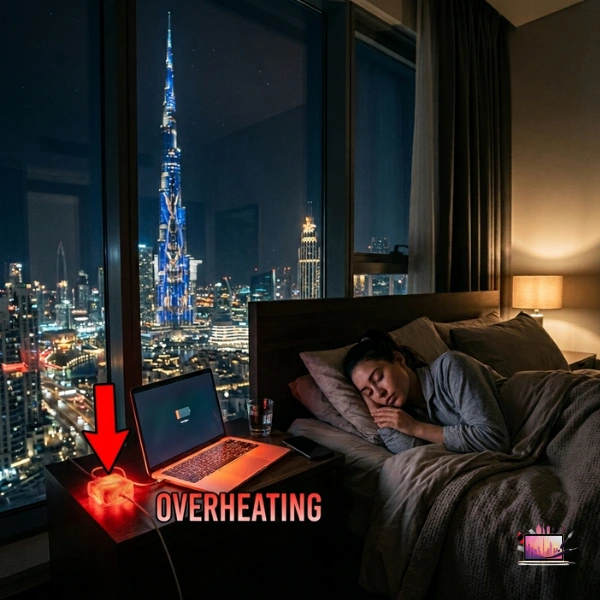
Most new MacBooks have overcharge protection, but keeping them plugged in overnight is still not good for the battery. It can affect how the battery works over time. Try to unplug your charger when the battery reaches 80–90%. Leaving it at 100% for too long can cause the battery to swell over time.
Ideal MacBook Battery Percentage Range
Keep your MacBook between 20% and 80% as much as practical for maximum battery lifespan.
MacBook Battery Cycle Count
Apple designs MacBook batteries for approximately 1,000 charge cycles. Overnight charging can reduce effective cycle life to 600–700 cycles.
Using Fake Chargers is a Huge Risk
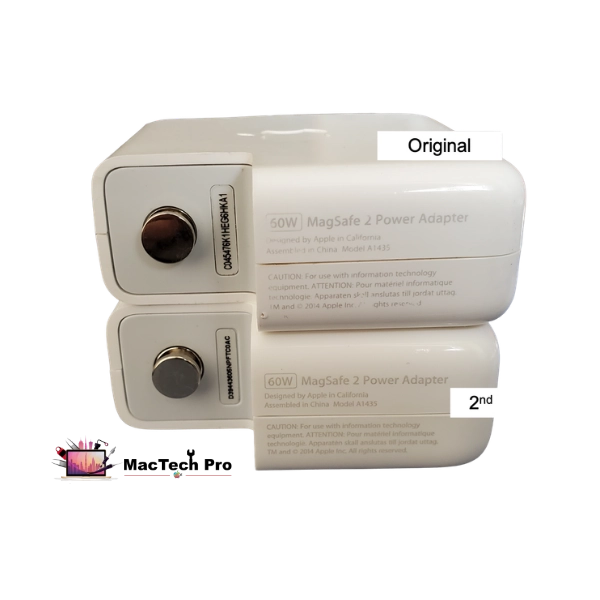
If you lose your original charger, avoid buying a cheap or fake replacement just to save money. These chargers may not provide your MacBook with the correct voltage or current. This can damage the battery and might even cause a short circuit or fire. Always use a charger from a trusted brand.
How to Spot a Fake MacBook Charger
- Missing Apple or CE certification marks
- Price below AED 80 — genuine chargers cost AED 150+
- MacBook runs unusually hot while charging with it
- Charger body lighter than the original
Correct Wattage Per Model
- MacBook Air M1/M2/M3/M4 — 30W to 67W
- MacBook Pro 14-inch — 67W to 96W
- MacBook Pro 16-inch — 140W
Don't Ignore Excessive Heat!
If your MacBook gets very hot while charging, unplug it right away. Too much heat can damage or even melt parts inside. Using a cooling pad or similar accessory can help prevent overheating. Taking good care of your MacBook can save you money on repairs and keep it working well.
Signs of Dangerous Overheating
- Fan running at maximum speed constantly
- Bottom case too hot to touch
- MacBook shuts off suddenly under light load
- Trackpad pushing upward — swollen battery, urgent
MacBook Deep Cleaning — AED 350
MacTech Pro's deep cleaning includes full disassembly, fan cleaning, heatsink treatment, and thermal paste replacement. Reduces processor temperatures by 15–25°C.
Frequently Asked Questions
MacBook Battery or Charging Problem?
Free Diagnostic • Free Pickup Dubai • Battery from AED 199 • Same-Day Available